LOOP DARLING ♡ / HELP CENTER / PATTERN GUIDANCE
Focus Mode & Guided Instructions
Focus Mode trims the crafting workspace down to the current instructions and controls so your attention stays on the project, not the menus.
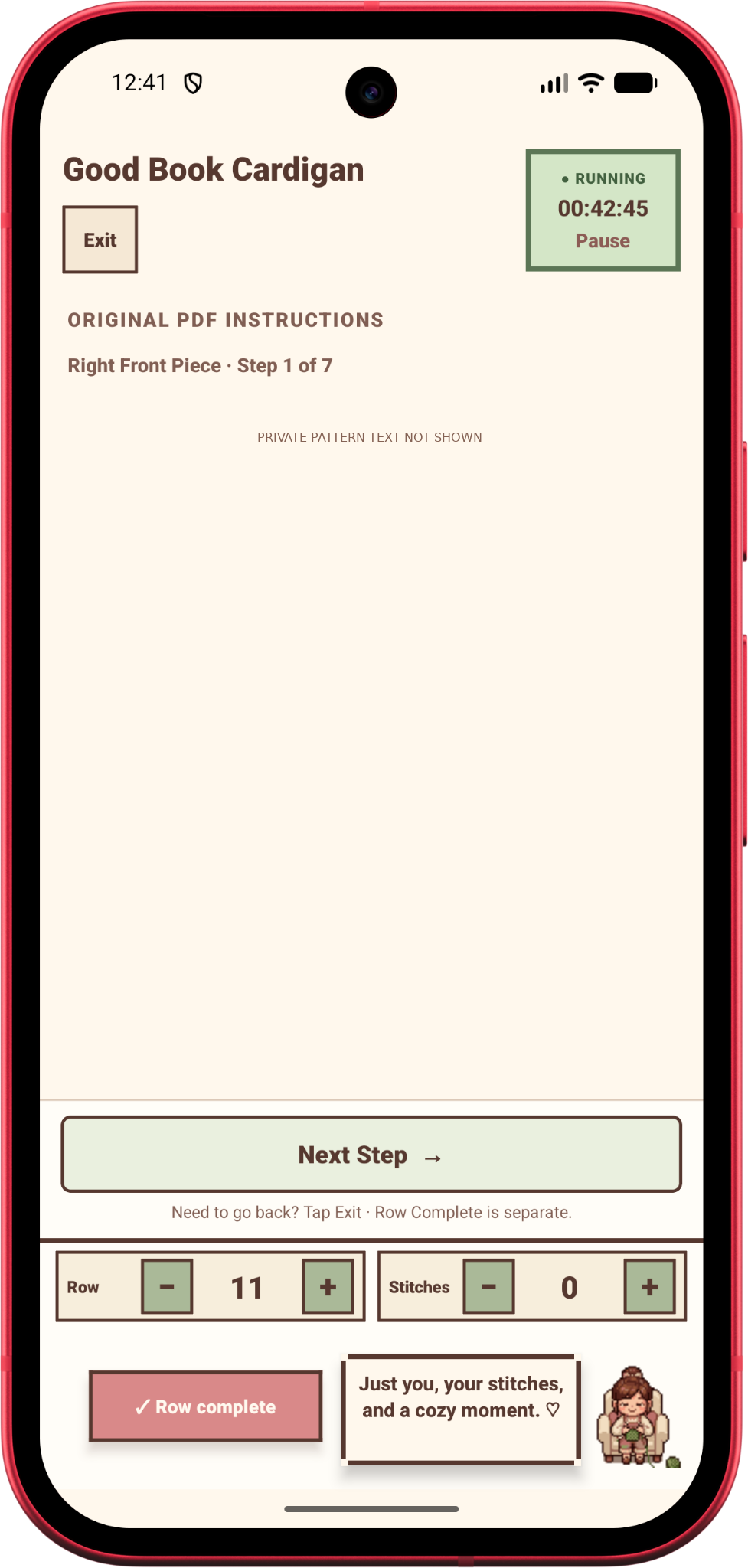
Enter Focus Mode
Open a project, then select Enter Focus Mode. It is off by default unless you enable it for that project. The setting is saved with your local project.
Focus Mode keeps your current instruction or source passage visible, along with the timer, row and stitch controls and Loopi. In landscape it uses a more compact layout.
Continue to the next instruction
When a PDF source passage or manually advanced guide provides another step, use Next Step to move forward. It changes the instruction position without incrementing your row count.
For explicitly numbered row guides, finishing the row may be what advances the instruction. The app does not assume that every paragraph equals one worked row.
What Row Complete does
Row Complete saves a completed row and resets the stitch checkpoint. Next Step is a reading/navigation action. Keep them separate whenever the PDF contains explanations, measurements or multiple instructions in one passage.
Exit Focus Mode
Choose Exit to return to the full project workspace for edits, pattern setup, size/piece selection, notes and access to the original PDF.
There is no dedicated Previous Step button inside the pared-down Focus Mode. Leave Focus Mode if you need to review, go backward or change setup.
Original passages versus interpreted guides
Current PDF passages are derived from extracted source text and can include continued instructions or parts of several steps. The app may say Current Step rather than Current Row when the source does not map to a single row.
Some helpful next-row notices are based on explicit written cues like increases, decreases, changes or measurements. They are not guarantees that the application understood the entire pattern.
If something looks wrong
Use the original PDF before completing a row. A highlighted size or detected section is a clue until you confirm it. Do not follow automatically inferred next steps if the pattern uses charts, shaping, multiple sizes or measurement-based transitions.
Related help
← Back to Help & Documentation
Based on the Loop Darling Android beta source. Steps may change as the app is tested and updated.

